
Installing Nextcloud on CyberPanel
Option 1: Using Docker
1. mariadb docker (ref)
mariadb (MySQL replacement) is installed with Cyber Panel. However, the mysqld server binds by default to 127.0.0.1, which cannot be accessed from within a Docker container.
To enable the Nextcloud container to access mariadb, setup a separate mariadb container instance.
-
Use port
3307since3306is in use by host already. -
Add root password as environment variable:
MYSQL_ROOT_PASSWORD:*** -
Create and start container.
2. Nextcloud docker
-
Create nextcloud folder:
bash session mkdir -p /home/cloud.site.com/public_html/nextcloud -
Create Nextcloud docker from CyberPanel.
-
Map volume
/var/www/htmlto/home/cloud.site.com/public_html/nextcloud -
Create and start container.
4. Initial set up
- Select
MySQL/MariaDBas the database and enter details: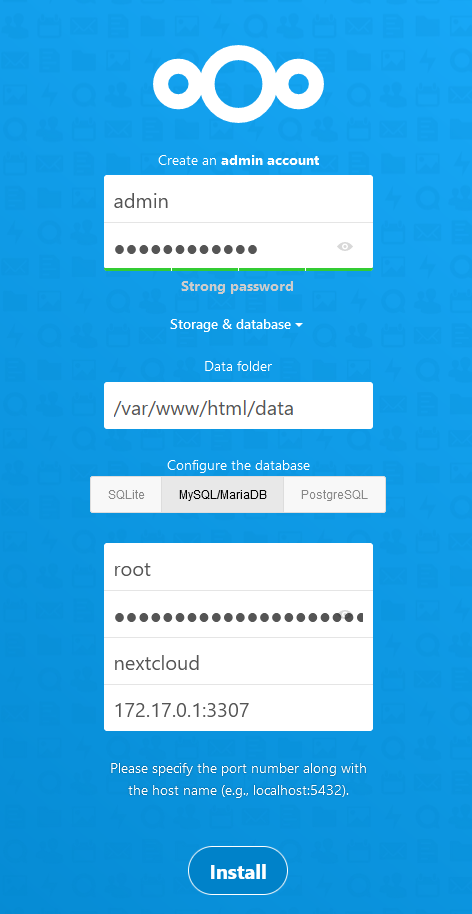
Option 2: Using Docker-compose
Easier way is to use docker-compose. Choose a folder e.g. /home/nextcloud and create the following docker-compose.yml:
version: '3.7'

volumes:
  nextcloud:
  db:

networks:
  nextcloud:
    ipam:
      driver: default
      config:
        - subnet: 172.28.0.0/16


services:
  db:
    image: mariadb:latest
    container_name: nextcloud-mariadb
    networks:
      - nextcloud
    restart: unless-stopped
    command: --transaction-isolation=READ-COMMITTED --binlog-format=ROW
    volumes:
      - ${NEXTCLOUD_ROOT}/mariadb:/var/lib/mysql
    environment:
      - MYSQL_ROOT_PASSWORD=${MYSQL_ROOT_PASSWORD}
      - MYSQL_PASSWORD=${MYSQL_PASSWORD}
      - MYSQL_DATABASE=nextcloud
      - MYSQL_USER=nextcloud

  redis:
    image: redis:latest
    container_name: nextcloud-redis
    networks:
      - nextcloud
    restart: unless-stopped
    command: redis-server --requirepass ${REDIS_HOST_PASSWORD}

  app:
    image: nextcloud:stable
    container_name: nextcloud
    networks:
      - nextcloud
    restart: unless-stopped
    ports:
      - 127.0.0.1:9001:80
    links:
      - db
      - redis
    volumes:
      - ${NEXTCLOUD_ROOT}/html:/var/www/html
      - ${NEXTCLOUD_ROOT}/data:/media/ncdata
    environment:
      - NEXTCLOUD_DATA_DIR=/media/ncdata
      - MYSQL_PASSWORD=${MYSQL_PASSWORD}
      - MYSQL_DATABASE=nextcloud
      - MYSQL_USER=nextcloud
      - MYSQL_HOST=db
      - REDIS_HOST=redis
      - REDIS_HOST_PASSWORD=${REDIS_HOST_PASSWORD}
      - TRUSTED_PROXIES=172.28.0.1
      - NEXTCLOUD_TRUSTED_DOMAINS=${NEXTCLOUD_FQDN}
      - OVERWRITEPROTOCOL=https
      - PHP_MEMORY_LIMIT=2048M
      - PHP_UPLOAD_LIMIT=2048M
    depends_on:
      - db
      - redis

  coturn:
    image: coturn/coturn
    container_name: nextcloud-coturn
    restart: unless-stopped
    #network_mode: host
    networks:
      - nextcloud
    ports:
      - 127.0.0.1:2052:2052/tcp
      - 127.0.0.1:2052:2052/udp
        #- 5349:5349/tcp
        #- 5349:5349/udp
        #volumes:
            #- /etc/letsencrypt/live/cloud.darkhalo.science/:/certs:ro
    command:
      - -n
      - --log-file=stdout
      - --realm=${NEXTCLOUD_FQDN}
      - --listening-port=2052
        #- --tls-listening-port=5349
      - --listening-ip=0.0.0.0
        #- --relay-ip=${NEXTCLOUD_IPADDRESS}
      - --external-ip=${NEXTCLOUD_IPADDRESS}
      - --no-tlsv1
      - --no-tlsv1_1
        #- --cert=/certs/cert.pem
        #- --pkey=/certs/privkey.pem
      - --min-port=49160
      - --max-port=49200
        #- --user=test:test123
        #- --no-multicast-peers
        #- --lt-cred-mech
      - --use-auth-secret
      - --static-auth-secret=${COTURN_SECRET}

  collabora:
    image: collabora/code
    container_name: collabora
    restart: unless-stopped
    networks:
      - nextcloud
    ports:
      - 127.0.0.1:9980:9980
        #extra_hosts:
        #- "${NEXTCLOUD_FQDN}:${NEXTCLOUD_IPADDRESS}"
        #- "${COLLABORA_FQDN}:${NEXTCLOUD_IPADDRESS}"
    volumes:
      - ${NEXTCLOUD_ROOT}/collabora/coolwsd.xml:/etc/coolwsd/coolwsd.xml
    environment:
            #- 'domain=site\\.darkhalo\\.science'
      - 'server_name=office.darkhalo.science'
      - "aliasgroup1=https://cloud.darkhalo.science"
      - 'dictionaries=en'
      - 'username=admin'
      - 'password=adminpassword'
      - "extra_params=--o:ssl.enable=false"
    cap_add:
      - MKNOD
    tty: true

  notify_push:
    image: nextcloud:stable
    container_name: nextcloud-notify_push
    restart: unless-stopped
    networks:
      - nextcloud
    ports:
      - 127.0.0.1:7867:7867
    links:
      - db
      - redis
    depends_on:
      - db
      - redis
      - app
    volumes:
      - ${NEXTCLOUD_ROOT}/html:/var/www/html:ro
    environment:
      - PORT=7867
      - NEXTCLOUD_URL=https://cloud.darkhalo.science/
      - DATABASE_URL=mysql://nextcloud:${MYSQL_PASSWORD}@db/nextcloud
      - DATABASE_PREFIX=oc_
      - REDIS_URL=redis://:${REDIS_HOST_PASSWORD}@redis
    entrypoint: /var/www/html/custom_apps/notify_push/bin/x86_64/notify_push /var/www/html/config/config.php
Also create a file named .env which stores some variables:
NEXTCLOUD_IPADDRESS=x.x.x.x
NEXTCLOUD_FQDN=cloud.domain.com
COLLABORA_FQDN=office.domain.com
MYSQL_ROOT_PASSWORD=...
MYSQL_PASSWORD=...
REDIS_HOST_PASSWORD=...
COTURN_SECRET=...
Replace each value accordingly.
To generate random hex keys,
openssl rand -hex 32
For hash keys,
openssl rand -base64 16
Configure OpenLiteSpeed
- In OpenLiteSpeed →
Virtual Host→ site → CreateExternal App:- Name: nextcloud
- URI: localhost:9001
- In OpenLiteSpeed, create reverse proxy using rewrite rules (ref):
Virtual Hosts→Context- Type:
Static - URI:
/ -
Enable HSTS by setting Header Operations:
Header always set Strict-Transport-Security "max-age=31536000"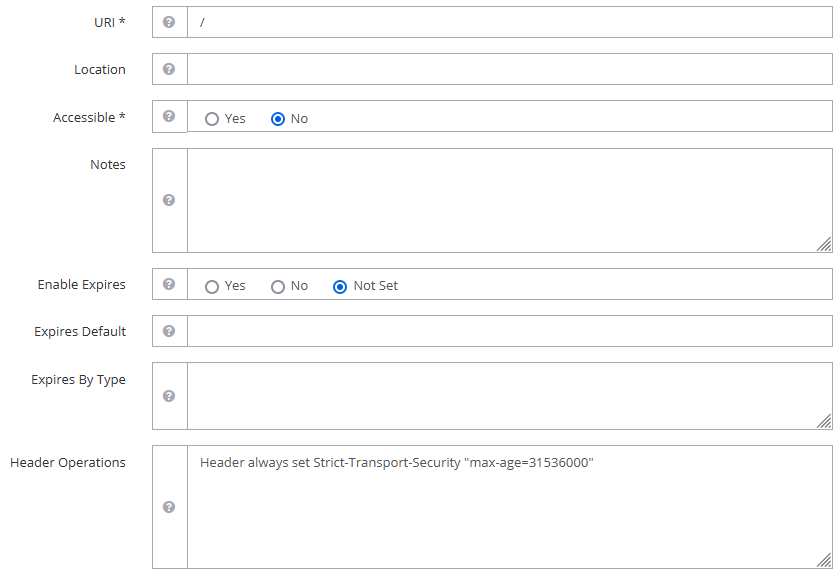
-
Rewrite Rules to redirect (i) HTTP to HTTPS, (ii) HTTPS to application, (iii) other required paths.
  RewriteRule ^\.well-known/carddav https://%{SERVER_NAME}/remote.php/dav/ [R=301,L]
  RewriteRule ^\.well-known/caldav https://%{SERVER_NAME}/remote.php/dav/ [R=301,L]
  RewriteCond %{HTTPS} !=on
  RewriteRule ^ https://%{HTTP_HOST}%{REQUEST_URI} [L,R=301]
  RewriteRule (.*)$ http://nextcloud/$1 [P,L,E=PROXY-HOST:cloud.darkhalo.science]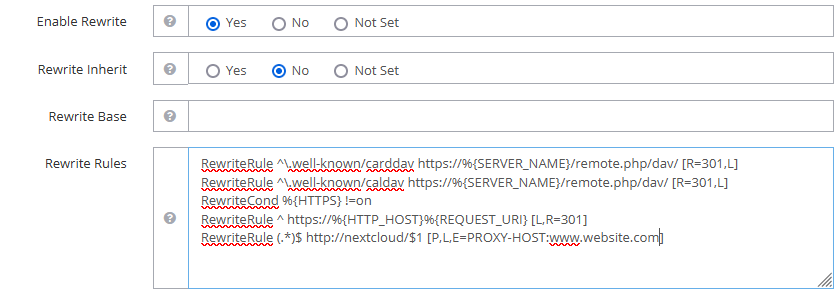
- Restart OpenLiteSpeed
-
Debugging:
Debug Rewrite Rules:
- in
Virtual Hosts→ website →Rewrite:Log Level: 9 - Check error logs:
tail -f /usr/local/lsws/logs/error.log
- in
Others
5. Fix security warnings
-
Add the following to
config/config.php(ref):'trusted_proxies' => array ( 0 => '172.28.0.1', ), 'forwarded-for-headers' => array ( 0 => 'HTTP_X_FORWARDED_FOR', ), -
Alternatively, use the command:
docker exec --user www-data nextcloud php occ config:system:set trusted_proxies 1 --value='172.28.0.1' -
Check the correct IP value using:
docker network inspect nextcloud_nextcloud
6. Setup 2FA
-
Follow instructions here.
-
Execute command:
docker exec -u www-data -it nextcloud php occ twofactorauth:gateway:configure telegram
7. Cron job (ref)
-
In the host:
crontab -e -
Add the lines:
*/5 * * * * docker exec -u www-data nextcloud php cron.php
8. High Performance Backend
- Install app
docker-compose upfornotify_pushwill fail the first time since the required app is not installed.- Once initial setup for Nextcloud is complete, install
Client Pushapp. - Run
docker-compose up -dagain, which should complete without errors.
- Setup reverse proxy for the newly created virtual host in OpenLiteSpeed:
- In OLS, add
External App:- Name:
notify_push - Address:
localhost:7867 - Max Connections: 25
- Timeout: 60
- Name:
- Add
Context:- Type:
static - URI:
/push/ - Rewrite Rules:
RewriteRule (.*)$ http://notify_push/$1 [P,L,E=PROXY-HOST:cloud.domain.com]
- Type:
- Add
Web Socket Proxy:- URI:
/push/ - Address:
localhost:7867
- URI:
- In OLS, add
- Setup app
-
Run the command:
docker exec -u www-data nextcloud php occ notify_push:setup https://cloud.domain.com/push -
Everything should pass if all goes well.
-
If
push server is not a trusted proxyis encountered, let notify_push connect locally to the Nextcloud instance.- Add
nextcloudto `trusted_domains’ - Set
NEXTCLOUD_URL=http://nextcloud/indocker-compose.yml
- Add
-
- Verification
-
Browser console should not have errors connecting to websockets.
-
Using logs:
docker logs nextcloud -
Using metrics:
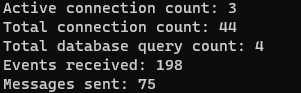
docker exec -u www-data nextcloud php occ notify_push:metricsIf successful, connection counts should be more than zero:
-
9. Imagemagick
docker exec nextcloud bash -c 'apt update && apt-get install -y --no-install-recommends $(apt-cache search libmagickcore-6.q[0-9][0-9]-[0-9]-extra | cut -d " " -f1)'
10. Phone region
docker exec --user www-data nextcloud php occ config:system:set default_phone_region --value=US
11. Path
To use a path in the url e.g. domain.com/nextcloud/, set overwritewebroot and overwrite.cli.url in config/config.php accordingly:
docker exec -u www-data nextcloud php occ config:system:set overwritewebroot --value=/nextcloud
docker exec -u www-data nextcloud php occ config:system:set overwrite.cli.url --value=https://domain.com/nextcloud
12. Collabora
Since we’re behind a reverse proxy handling SSL, we need to disable the internal SSL for Collabora.
- Edit
coolwsd.xml:-
Copy
coolwsd.xmlfrom the container:docker cp collabora:/etc/coolwsd/coolwsd.xml ./collabora/coolwsd.xml -
Under
<ssl desc="SSL settings">, the two lines should say the following:<enable type="bool" desc="Controls whether SSL encryption between coolwsd and the network is enabled (do not disable for production deployment). If default is false, must first be compiled with SSL support to enable." default="true">false</enable> <termination desc="Connection via proxy where coolwsd acts as working via https, but actually uses http." type="bool" default="true">true</termination> -
Mount the file as shown in
docker-compose.yml
-
-
In Cyberpanel, create a new website e.g.
office.domain.com - Set up reverse proxy:
- In OLS, add an
External App:- Type:
Web Server - Name:
collabora - Address:
localhost:9980
- Type:
- Add
Context:- Type:
Static - URI:
/ -
Rewrite Rules:
  RewriteCond %{HTTPS} !=on
  RewriteRule ^ https://%{HTTP_HOST}%{REQUEST_URI} [L,R=301]
  RewriteRule (.*)$ http://collabora/$1 [P,L,E=PROXY-HOST:office.darkhalo.science]
- Type:
- Add
Web Socket Proxy:- URI:
/ - Address:
localhost:9980
- URI:
- In OLS, add an
13. Reset
To clear Nextcloud configuration and redo the setup, there are two options:
- Navigate to Nextcloud folder e.g.
/home/site.com/public_html/nextcloud/.- Delete the folder
data - Delete the file
config/config.php - Create a file
config/CAN_INSTALL
- Delete the folder
-
If using
docker-compose, then simply remove the volumes e.g.docker volume rm nextcloud_db docker volume rm nextcloud_nextcloud
14 Updating Nextcloud
- Nextcloud can be simply updated and restarted by
sudo docker-compose pull sudo docker-compose down sudo docker-compose up -d` -
However, Nextcloud can only be updated one major version at a time. In this case, specify the specific version in
docker-compose.ymle.g.image: nextcloud:25 -
After updating, check that there are not security and setup warnings. If the warning
The database is missing some indexes. Due to the fact that adding indexes on big tables could take some time they were not added automatically.is obtained, run the following command (ref):sudo docker exec --user www-data nextcloud_app php occ db:add-missing-indices
15. Notes
OpenLiteSpeed does not support SetEnvIf for headers (e.g. env=HTTPS does not work) (ref).